Data Recovery Software for Mobile Phone Screenshots
➜ Android users can recover their lost, deleted, and even corrupted data from different types of Android devices, including Android phones, tablets, and SD cards, using professional mobile data recovery software. With its two recovery modules, Recover from Phone and Recover from SD-Card, users can retrieve media data such as photos, APP photos, videos, audios, and social media attachments in addition to text data such as messages, contacts, call history. As long as they are not overwritten by new data, you can always use this software to recover lost and deleted Android files.
The Following Scenarios Can Have Lost and Deleted Android Data:
- ➤ Deletion Error
- ➤ Fault in the System
- ➤ Password Forgotten
- ➤ Device is stuck
- ➤ An Error in the Operating System
- ➤ Incorrect Handling
- ➤ Issues with SD Cards
Simple steps for quickly recovering lost data from a Mobiles Device:
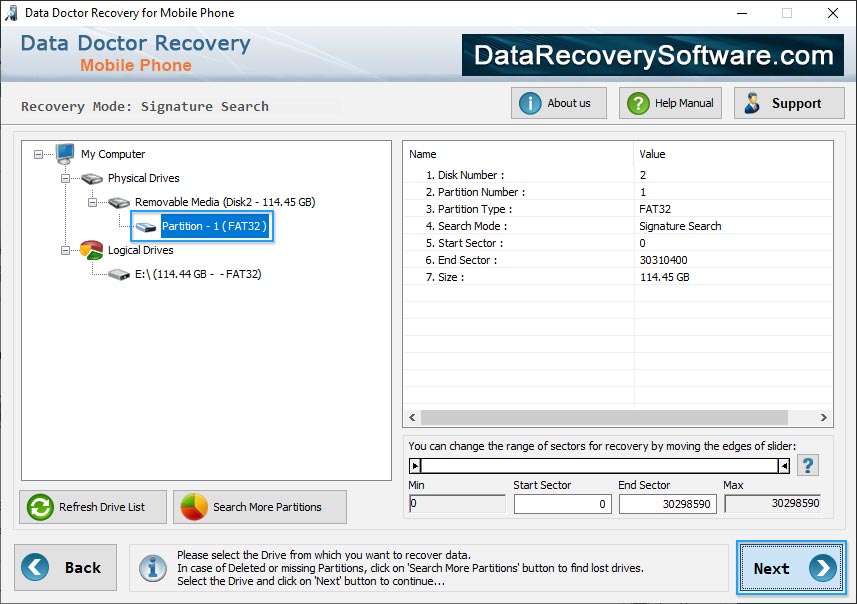
Step 1: Select any one search option to restore missing data from the device
➜ Software provides five search options (Basic, Deep, Photo, Video and signature search) to help users find lost data in any situation. To recover the data, we use the signature search mode. This mode uses a signature search algorithm to restore various file types via the file system structure of storage media. User can select a drive from the left-hand panel's list of accessible physical or logical drives before using the "search more partition" button to find for missing partitions.
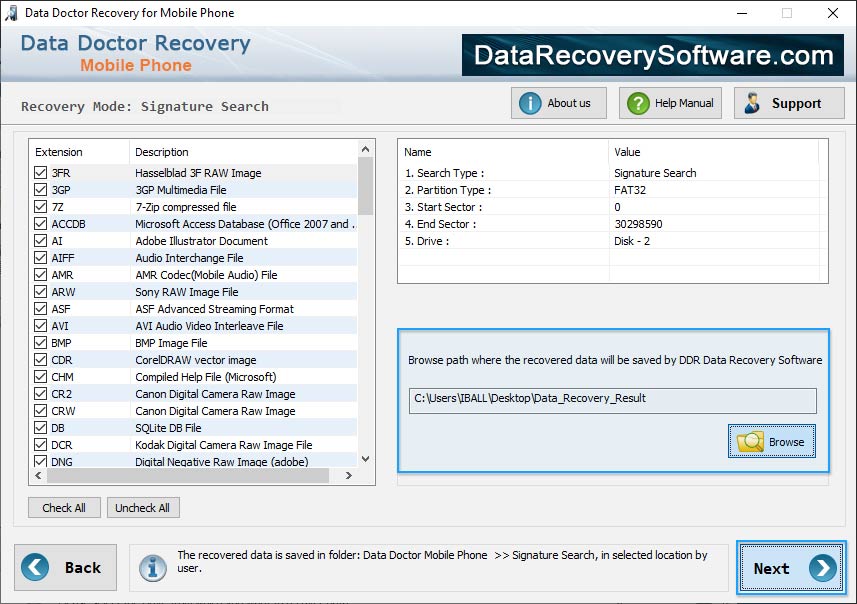
Step 2: Select a location to save the recovered data and click the next button to proceed
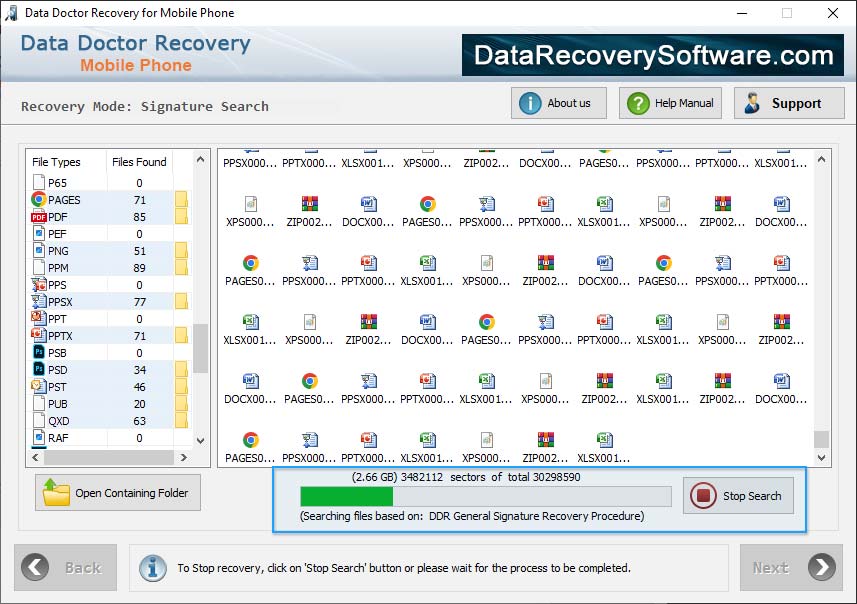
➜ First browse to the location where the software will save the recovered data. Before starting the searching process, users can select the range of sectors by dragging the slider's edges or manually entering these values in the "start sector" and "end sector" fields. Simply select the next button to start the search. The user can stop the search for particular folders or partitions by clicking the "stop search" button.
DDR Thorough Scanning Algorithm based search running to recover all lost data.
Step 3: View the recovered data after the scanning process is completed
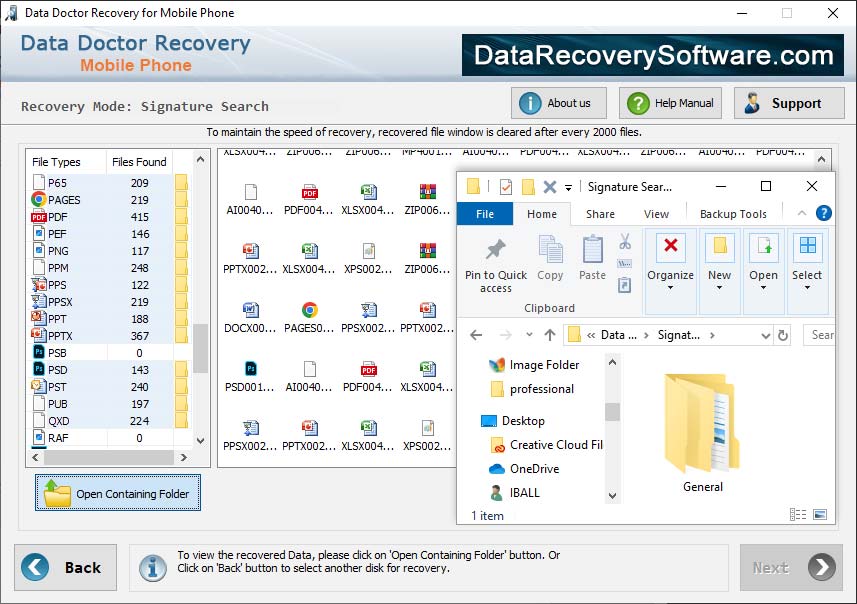
➜ Recovery software can allow a user to quickly view retrieved files by selecting the "open containing folder" option. The "Back" button can be used to choose a different disk or partition for recovery.
Click on Open containing folder to view all recovered files.